Getting Started with SSH in Windows PowerShell
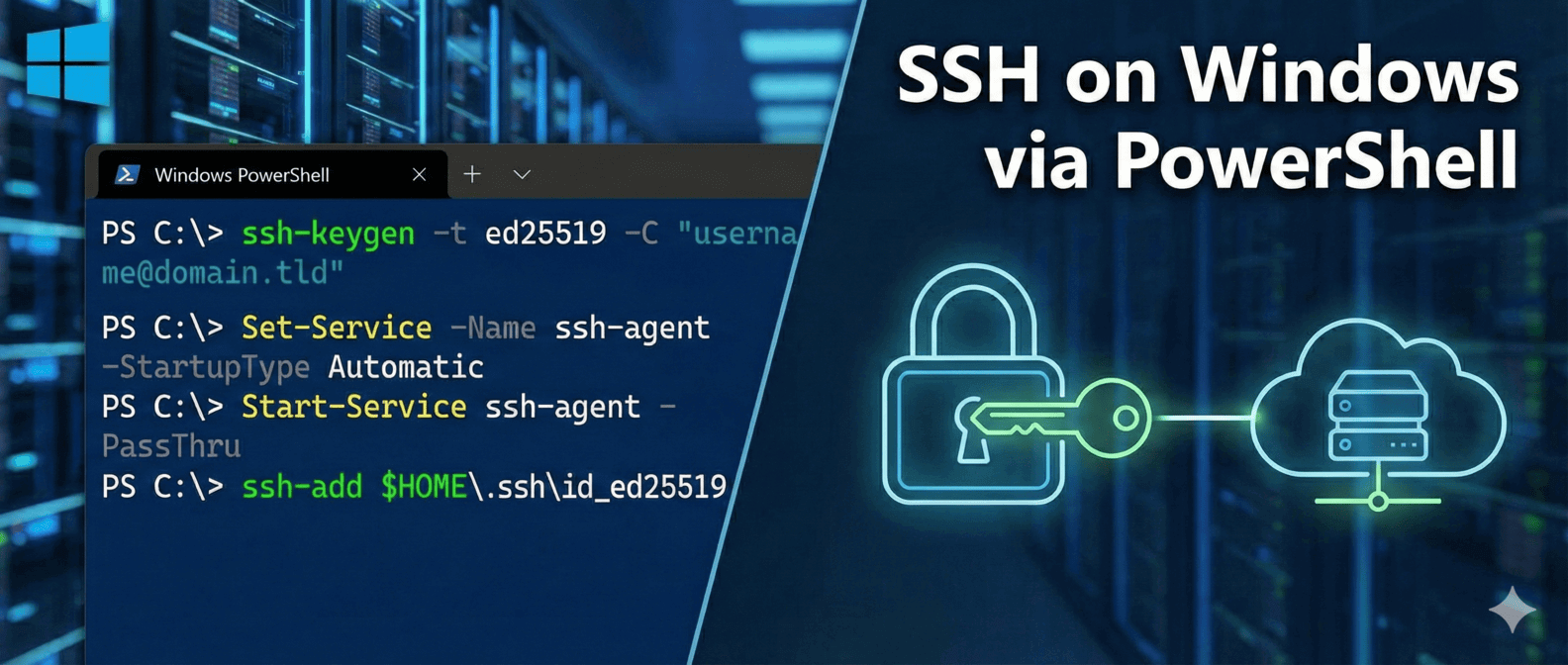
A common activity that non-Windows folks are used to daily-driving is Secure Shell (SSH) for remote management of servers. Then suddenly, they have a need to SSH from a Windows machine and aren’t entirely certain how getting started works. So let’s get you set up in this short and sweet post!
Generate SSH Key
You might have your OpenSSH-compatible private key you want to use (if you do, skip down to the next section), but in case you don’t, let’s generate one. Windows 10 and 11 ship with a distribution of OpenSSH.
1
ssh-keygen -t ed25519 -C "username@domain.tld"
You could swap ed25519 for your preferred key type (e.g. rsa, ecdsa, dsa, etc.); you’ll obviously populate your own email identity as well. You’ll be given the opportunity to specify a specific output filepath for your new private key. If you do not specify one, then it will output to your userprofile’s SSH directory ($HOME\.ssh\).
Start SSH Agent
You’ll likely want to make sure that the OpenSSH-Client Windows service is set to start automatically. In this case, we’ll actually use a couple of PowerShell cmdlets:
1
2
Set-Service -Name ssh-agent -StartupType Automatic
Start-Service ssh-agent -PassThru
Add SSH Key to SSH Agent
Rather than have to specify the identity to use everytime you use SSH, we’ll add your key to the SSH agent similar to how we would if we weren’t on a Windows machine:
1
2
3
# If you used a custom name for your key, use it here as well.
# (e.g. `$HOME\.ssh\myKeyName` )
ssh-add $HOME\.ssh\id_ed25519
And that’s pretty much it! If you want to see what keys have been added to your user profile, you can do so with:
1
ssh-add -l
Wrapping Up
Go SSH!
1
ssh username@domain.tld
Just because you end up in Windows-land doesn’t mean you have to forego using SSH, and as of Windows 10, you don’t even have to download a separate client! The PowerShell shell plus the included Win32-OpenSSH distribution (now maintained as openssh-portable) will do the trick!
Have you ended up in Windows land and been curious about things like Windows Terminal, PowerShell, SSH, etc.? I’d love to hear about your experience on BlueSky!.
Additional Reading
Afterthought:
Maybe not relevant to the core of this post, but I do want to point out that thessh-*commands are not PowerShell language, but executables, and we’ll execute these from the PowerShell shell. This is in some amount of contrast to much of the other content on this blog, and only tangentially related to the PowerShell topic.