PSAdminLauncher v0.1.0 Release
If you administer hardened Windows servers, you know the drill. Every time you go to open a built-in tool you need (Active Directory tools, certificate tools, make firewall modifications, etc.), you’re prompted to re-enter your password again, and again, and again. After about the third time you get frustrated!
Introducing PSAdminLauncher.
What is it?
PSAdminLauncher is a standalone launcher GUI written in PowerShell and using the Windows Presentation Framework. It’s designed to be compiled into a single executable (using PS2EXE) that you can drop onto any server (no installation required). It doesn’t rely on hardcoded lists of tools. Instead, it dynamically scans the system to figure out what’s available and display it to you.
The skeleton of the graphical user interface:
1
2
3
4
5
6
7
8
9
10
11
12
13
14
15
16
17
18
19
20
21
22
23
24
25
26
27
28
29
30
31
32
33
34
35
36
37
38
39
40
41
42
43
44
# Load needed assemblies
Add-Type -AssemblyName PresentationFramework, PresentationCore, WindowsBase | Out-Null

# Define some XAML
$xaml = @"
<Window xmlns='http://schemas.microsoft.com/winfx/2006/xaml/presentation'
        xmlns:x='http://schemas.microsoft.com/winfx/2006/xaml'
        Title='Admin Tools Launcher' Height='800' Width='1300'
        WindowStartupLocation='CenterScreen' ResizeMode='CanResize'
        Background='#1E1E1E' Foreground='#F0F0F0' FontFamily='Segoe UI' FontSize='12'>

  <Window.Resources>
    <SolidColorBrush x:Key='AccentBrush' Color='#0E639C'/>
    <SolidColorBrush x:Key='ListItemBg' Color='#2D2D30'/>
    <SolidColorBrush x:Key='ListItemSel' Color='#094771'/>
    <SolidColorBrush x:Key='BorderBrush' Color='#3C3C3C'/>

    <Style x:Key='DarkListViewItemStyle' TargetType='ListViewItem'>
      <Setter Property='Background' Value='{StaticResource ListItemBg}'/>
      <Setter Property='Foreground' Value='#F0F0F0'/>
      <Setter Property='BorderBrush' Value='{StaticResource BorderBrush}'/>
      <Setter Property='BorderThickness' Value='0,0,0,1'/>
      <Setter Property='HorizontalContentAlignment' Value='Stretch'/>
      <Style.Triggers>
        <Trigger Property='IsSelected' Value='True'><Setter Property='Background' Value='{StaticResource ListItemSel}'/></Trigger>
        <Trigger Property='IsMouseOver' Value='True'><Setter Property='Background' Value='#3E3E42'/></Trigger>
      </Style.Triggers>
    </Style>

    <Style TargetType='GroupBox'>
        <Setter Property='Foreground' Value='White'/>
        <Setter Property='Margin' Value='4'/>
        <Setter Property='BorderBrush' Value='#3C3C3C'/>
        <Setter Property='FontWeight' Value='SemiBold'/>
    </Style>
  </Window.Resources>

  ... TRUNCATED FOR BLOG POST ...

</Window>
"@

# Parse the XAML
$window = [Windows.Markup.XamlReader]::Parse($xaml)
Each window feature is then defined and has events/actions tied to them.
Key Features
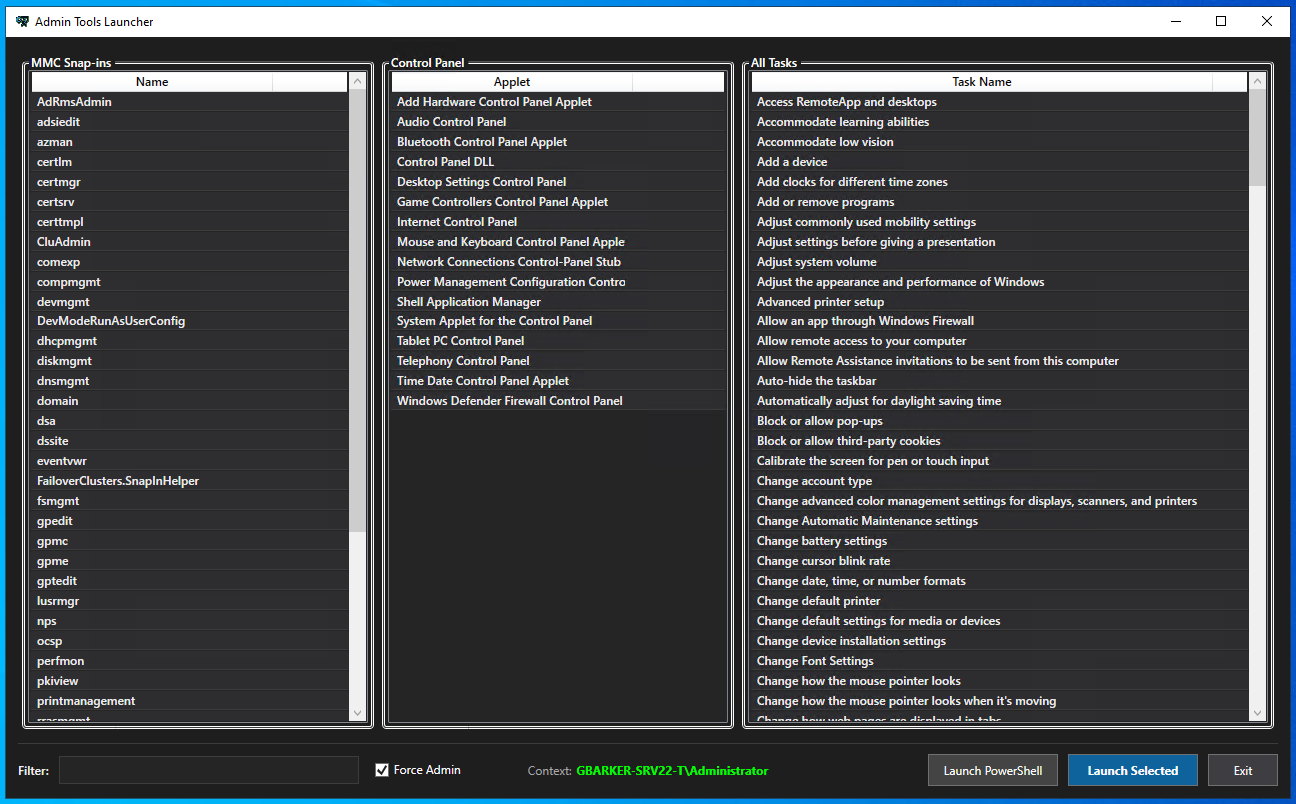
Dynamic Triple-Column Discovery
The launcher scans for common RSAT-type tools in C:\Windows\System32. If RSAT is installed, those tools will appear. If it’s a bare-bones member server, they don’t. It organizes everything into three searchable columns:
- MMC Snap-ins (the usual
.mscsuspects such ascertmgr.msc) - Control Panel Applets (the usual
.cplnetwork and other system settings) - Deeper Tasks (An unfiltered dump of the Windows master control panel/”God Mode” namespace for more specific or obscure tasks)
Context Indicator
At the bottom of the window, a bright green label tells you exactly who you are currently running the launcher as (DOMAIN\username).
Re-Authentication
The idea was to make launching built-in tools have less friction. While I could have made it such that the Launch PowerShell button just uses the current context, there are many situations where you might actually want to spanw a new PowerShell session as another user. For this reason, you’ll be prompted for credentials when clicking this button. It prompts for credentials via a Windows Credentials pop-up, then spawns a new, separate PowerShell session using the -LoadUserProfile flag and a neutral working directory.
Under the Hood
The project started as a simple script but evolved into a sturdy tool using [PSCustomObject] for data handling to avoid session-locking issues during development. It uses XAML for the user interface and connects PowerShell logic to WPF events for real-time filtering and launching. It’s a practical example of how far you can leverage PowerShell for simple GUI development to solve daily operational friction.
Wrapping Up
You can find the project on GitHub.
⚠️ WARNING: This is for educational purposes only. It should not be considered production-ready, best-practice, etc. You should fully understand code before you run it on your system, and you should have authorization to run code on your system.
This was a fun little side project I thought of and thought I’d post. Maybe someone will find it interesting or helpful in some way. If you do, I’d appreciate you giving the project a ⭐ start on GitHub, and hearing from you on BlueSky!